 Help Lightning API Documentation
Add screen sharing to an iOS or visionOS app
Help Lightning screen sharing uses a ReplayKit broadcast upload extension. This tutorial applies to iOS and native visionOS applications using Help Lightning SDK 26.5.3.
- The host application is integrated with Help Lightning SDK 26.5.3
- The host app and extension use iOS 17.0 or later, or visionOS 2.1 or later for a native Vision Pro app
- The Apple development team supports App Groups
- A physical iPhone, iPad, or Vision Pro is available for testing
ReplayKit broadcast upload extensions must be tested on physical devices.
In Xcode, add a target using the Broadcast Upload Extension template.
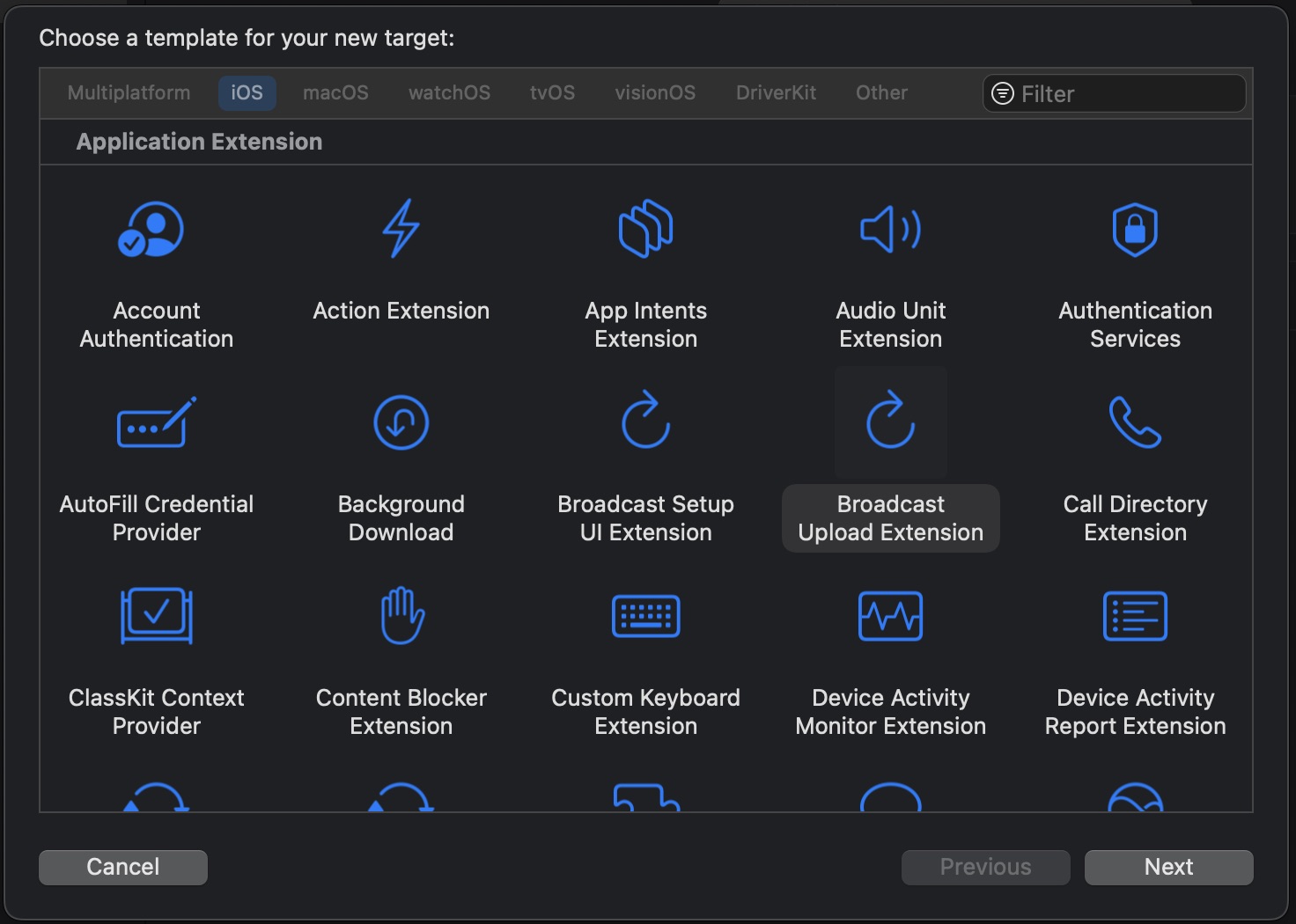
Use a bundle identifier that is unique to the extension. A conventional
identifier appends .ScreenSharingExtension to the host application’s
bundle identifier:
Host app:  com.example.MyApp
Extension: com.example.MyApp.ScreenSharingExtension
Confirm that the extension is embedded in the host app under Frameworks, Libraries, and Embedded Content or the app target’s Embed App Extensions build phase.
If the project supports both iOS and native visionOS, create a separate broadcast upload extension target for each platform. Set the extension deployment targets to iOS 17.0 and visionOS 2.1 respectively, and embed each extension only in its matching host application.
If the project does not already use the Help Lightning package, choose File > Add Package Dependencies and enter:
https://github.com/VIPAAR/hlsdk-ios-spm.git
Pin the package to exact version 26.5.3.
Add the HLSDKScreenSharing product to the broadcast extension target
only. Do not link this product to the host application target.
The host application continues to use its normal product:
HLSDKSwiftfor a SwiftUI appHLSDKandHLSDKSwiftfor a UIKit app written in SwiftHLSDKfor an Objective-C app
Add -ObjC to Other Linker Flags in both Debug and Release for the
host app and the broadcast extension.
The CocoaPods dependency HLSDK/ScreenSharing and its associated
CocoaPods build-setting workarounds do not apply to SDK 26.5.3.
Create an App Group in Signing & Capabilities. Add the same App Group capability and identifier to:
- The host application target
- The broadcast upload extension target
A conventional identifier prefixes the extension bundle identifier
with group.:
group.com.example.MyApp.ScreenSharingExtension
The App Group value used in code must exactly match the entitlement on both targets.
Remove the empty ReplayKit methods generated by the Xcode template.
Make SampleHandler inherit from
HLScreenSharingBroadcastSampleHandler and return the shared App Group.
Swift:
import ReplayKit
import HLSDKScreenSharing

final class SampleHandler: HLScreenSharingBroadcastSampleHandler {
    override func getAppGroupName() -> String {
        "group.com.example.MyApp.ScreenSharingExtension"
    }
}
Objective-C header:
#import <ReplayKit/ReplayKit.h>
#import <HLSDKScreenSharing/HLSDKScreenSharing.h>

@interface SampleHandler : HLScreenSharingBroadcastSampleHandler
@end
Objective-C implementation:
#import "SampleHandler.h"

@implementation SampleHandler

- (NSString *)getAppGroupName {
    return @"group.com.example.MyApp.ScreenSharingExtension";
}

@end
Implement hlCallNeedScreenSharingInfo: on the retained
HLClientDelegate. Return the App Group and the broadcast extension’s
bundle identifier.
Swift:
nonisolated func hlCallNeedScreenSharingInfo(
    _ call: any HLGenericCall
) -> [String: Any] {
    [
        kHLCallPluginScreenSharingAppGroupName:
            "group.com.example.MyApp.ScreenSharingExtension",
        kHLCallPluginScreenSharingBroadcastExtensionBundleId:
            "com.example.MyApp.ScreenSharingExtension"
    ]
}
Objective-C:
- (NSDictionary *)hlCallNeedScreenSharingInfo:
    (id<HLGenericCall>)call {
    return @{
        kHLCallPluginScreenSharingAppGroupName:
            @"group.com.example.MyApp.ScreenSharingExtension",
        kHLCallPluginScreenSharingBroadcastExtensionBundleId:
            @"com.example.MyApp.ScreenSharingExtension"
    };
}
If this method returns incorrect identifiers or an empty dictionary, the SDK cannot offer the configured screen-sharing extension.
Before running the app, confirm:
- The host app and extension have the same App Group entitlement
- The delegate and sample handler return that exact App Group
- The delegate returns the current extension bundle identifier
- The extension is embedded in the host application
- Only the extension links
HLSDKScreenSharing - Every target linking a Help Lightning product includes
-ObjC - Debug and Release use valid provisioning profiles with App Groups
Install the host app on a physical iPhone or iPad and start a Help Lightning call. Users can start sharing in either of these ways:
- Open the in-call Share menu and select Screen.
- Open Control Center, press and hold Screen Recording, select the application’s broadcast extension, and start the broadcast.
Screen recording can expose notifications and other sensitive content. Consider enabling a Focus mode before starting.
If the user starts the extension without an active Help Lightning call, the broadcast stops automatically after a short delay.
Install the native app and its visionOS broadcast extension on a physical Vision Pro. Start a Help Lightning call, open the in-call Share menu, and select Screen. Confirm that the visionOS extension is offered and that sharing starts.
Use a visionOS-specific extension bundle identifier and App Group.
Return those values from the native app’s
hlCallNeedScreenSharingInfo: implementation, and return the same App
Group from the visionOS extension’s sample handler.
Passthrough in a Vision Pro screen capture additionally requires
Apple’s approved
com.apple.developer.screen-capture.include-passthrough entitlement,
an approved provisioning profile, and an Apple-issued
Enterprise.license in the extension’s Copy Bundle Resources.
Add the entitlement and license to the visionOS extension, not the iOS extension. The license must remain private and must not be committed. See Native Vision Pro for the Apple approval, provisioning, and host-app main-camera setup.
- Screen is missing from the share menu: verify the delegate is retained and returns both required identifiers.
- The extension is missing from the broadcast picker: verify the extension is embedded and its provisioning profile is valid.
- The broadcast starts and immediately stops: verify there is an active Help Lightning call and that all App Group values match.
- The target has linker errors: verify product selection and add
-ObjCto the affected target.
For a complete working configuration, see
SamplePresence.